Molding Mart · Sales Team
The CRM handbook
Everything you need to work a lead in GoHighLevel: what the menu items do, how to open a card, where to write notes, where your tasks live, how to text or email a customer, and how to find anything in ten seconds. Screens in this guide are our own account, so what you see here is what you will see at work.
01Why we work this way
Right now a request can reach us three ways: the phone rings, someone fills a form on the website, or a call comes in when nobody can pick up. The phone calls get handled because the phone is loud. The rest quietly pile up.
Here is the number that started all of this: our shared inbox in the CRM currently shows 627 unread conversations. Every one of them is a person who wanted molding and did not get an answer from us. They did not stop needing baseboards, they just bought them somewhere else.
02Three words to learn first
The CRM uses three words for three different things. Once these click, the rest of the app makes sense.
| Word | What it really is | Example |
|---|---|---|
| Contact | A person. One phone number, one email, one human being. It never disappears. | Mike Sanders, (916) 555-0134 |
| Opportunity | One request from that person. We also call it a deal or a card. The same contact can have several: three projects, three cards. | Mike asking about crown molding for his kitchen |
| Pipeline and Stage | The board and its columns. The pipeline is called Leads. A stage is one
column on it, and it answers one question: what is happening with this request right now. |
The card sits in the Quote Sent + Call Today column |
Stage is not the same as Status
Stage is the column your card sits in: New Website Leads,
Quote Sent + Call
        Today
, Negotiations and so on. You move it by hand as
the conversation moves forward.
Status is the final answer for the whole deal, and there are only three:
Won, Lost, or Open while it is still alive.
Won you set yourself, once the invoice is paid: put the amount from QuickBooks in
Value and mark the deal Won. Lost you do by hand too, and it always needs a reason.
04Opportunities: the board
Open Opportunities in the left menu. Every card is one request. Every column is a
stage. Work moves left to right: New Website Leads, Pending Our Answer,
Quote Sent + Call Today, Follow up 1 (After-Quote),
Negotiations, Visit Expected, Pending for a Week,
Order Placed. The full path with every turn is on the
workflow map. New Calls is for phone calls and is
not part of this flow yet: leave those cards alone until you hear otherwise.
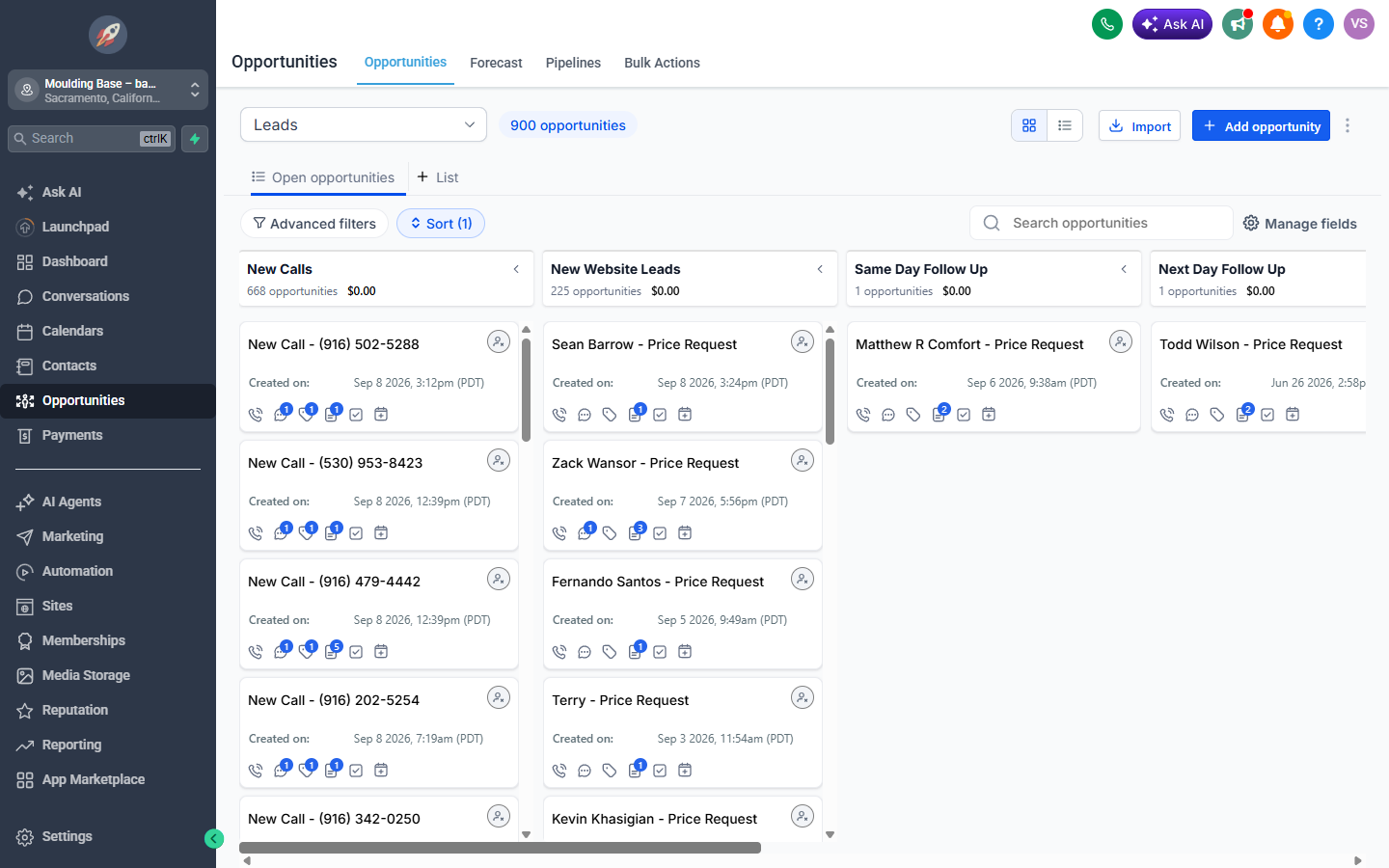
Leads, and each
column header shows how many cards are in it.What is on the screen
- The pipeline selector (top left, says
Leads). We have one pipeline, so leave it alone. - The two small icons next to it switch between the board view and a plain list view. The board is easier to work, the list is easier to scan.
Advanced filtersandSortnarrow the board down. See section 10.Search opportunitiesfinds a card by the customer name or phone number inside the board.Add opportunitycreates a card by hand. You rarely need it: calls and web forms create cards on their own.
Moving a card
Drag the card into the next column, or open it and change the Stage field inside.
Both do exactly the same thing. Moving a card is not a big deal and it is not permanent: if you put
it in the wrong column, drag it back.
New Website Leads once the quote is out, or in
Pending Our Answer past the morning. Those two columns are an inbox, not a parking
lot. Whatever is still in New Website Leads at closing moves to
Pending Our Answer by itself, and that column is the first thing you clear the next
morning, before any new lead. Those people have been waiting the longest.
05Inside a deal card
Click any card and this window opens. The title bar says Edit and then the name of
the deal.
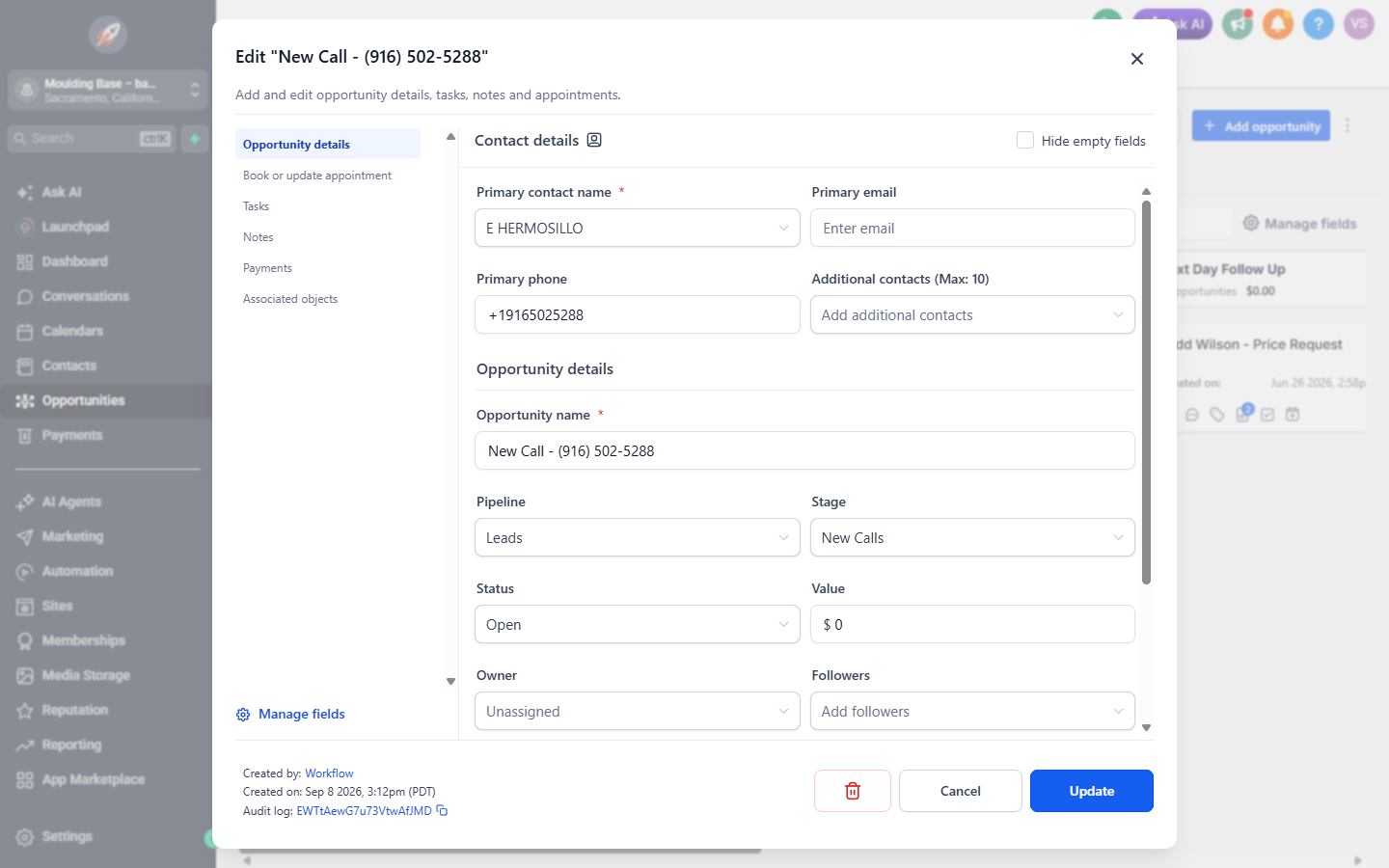
Update button.The tabs on the left
Opportunity details: the fields you see above.Book or update appointment: only if you are scheduling something on a calendar.Tasks: what has to be done on this deal and when.Notes: the story of the deal in words. You will use this one the most.PaymentsandAssociated objects: not part of your job today.
The fields that matter
| Field | What it is for |
|---|---|
Primary contact name | Who this is. If it says a phone number instead of a name, ask for the name on the next call and fix it here. |
Primary phone and Primary email | How to reach them. An empty email is worth filling in: it is how we send quotes. |
Opportunity name | The name on the card. Make it useful: Mike Sanders, crown molding, kitchen beats New Call. |
Pipeline and Stage | The board and the column. Changing Stage here is the same as dragging the card. |
Status | Open, Won or Lost. See section 2: both Won and Lost you set yourself, Won after the invoice is paid, Lost always with a reason. |
Value | The order amount in dollars, exactly as invoiced in QuickBooks. You fill it in once the invoice is paid, right before you mark the deal Won. A Won deal without a Value is a sale nobody can count. |
Owner | Whose deal this is. If it says Unassigned, put your own name there when you start working it, otherwise the tasks land on nobody. |
Update
Changed a field and closed the window with Cancel or the cross? Nothing
happened. The same is true the other way round: press Update and the change is live
for everyone.
Getting from the deal to the person
The small icon next to Contact details at the top of the card opens the contact
behind this deal, with their full history. To come back, use the browser back button or open the
deal again from the board. See section 8 for the trip in the other direction.
06Notes: no note, no move
A note is a short piece of text attached to the deal. It is how the next person, or you in three weeks, knows what happened.
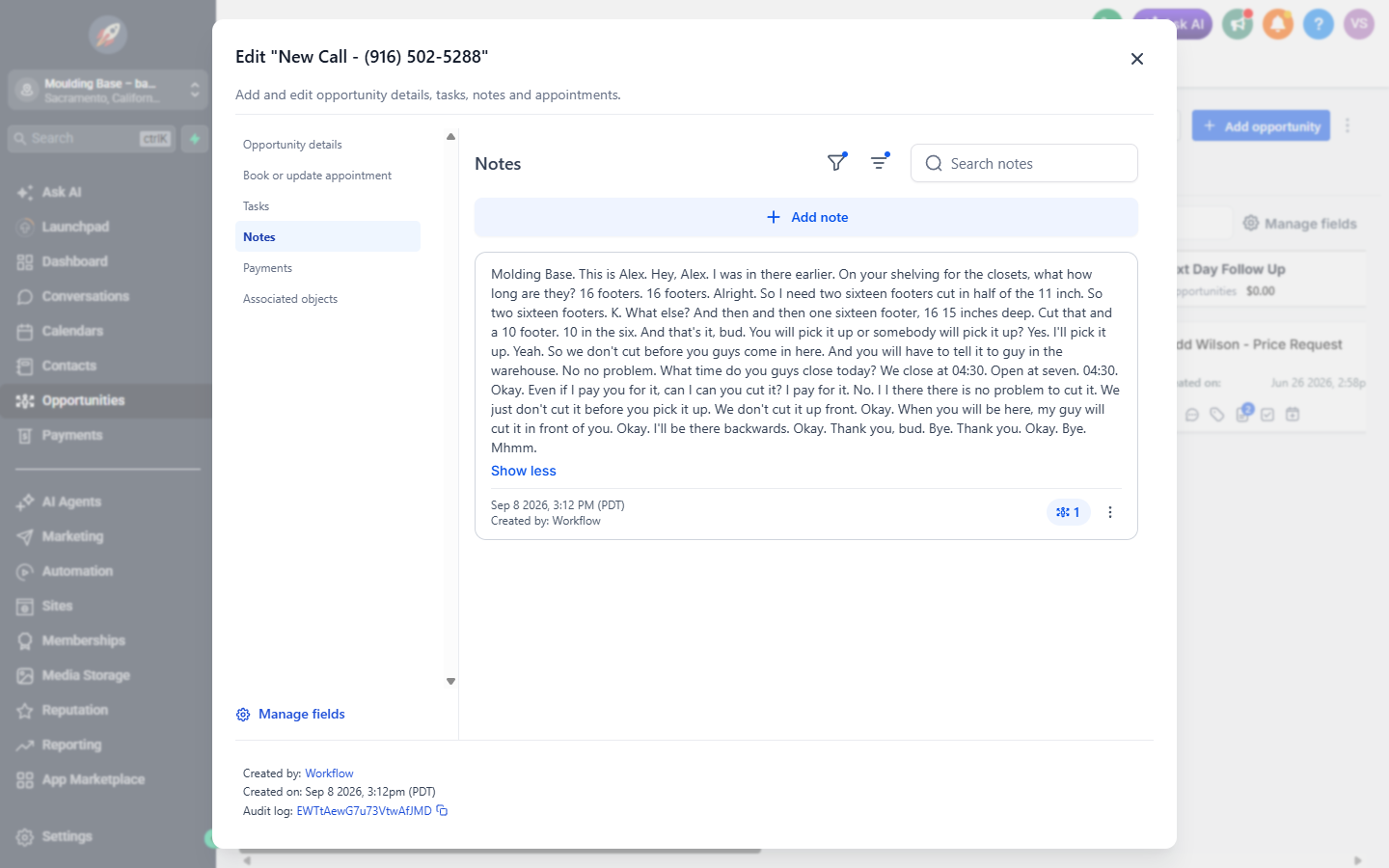
Created by: Workflow. Your note adds the part
the transcript cannot know: what you decided, what you promised, and by when.
Quote Sent + Call Today, Negotiations,
Visit Expected, Order Placed or Lost until the note on it is filled in.
A moved card with an empty note tells the next person nothing: not what the customer wanted, not
what we said, not what happens next. If it is not in the note, it did not happen.
The note is already started for you
When a website lead comes in, the system opens a note on the deal with four lines. The first one is filled in from the form. You fill in the other three after the call, in the same note:
Qty:
Quoted:
Next:
Qty: 240 ft (15 pcs), plus matching casing
Quoted: $0.89/ft, $214 total, 180 ft in stock, rest lands Thursday
Next: he checks measurements tonight and calls back tomorrow; if not, I call Wed morning
Qty. From the real conversation, not from the form. People change their mind once they hear a price.
Quoted. The price you gave, per foot and total, plus stock and delivery if you discussed them. No price yet? Write why: waiting on stock check.
Next. What you agreed and when. Then put the same date on the task (section 7).
Keep the four labels exactly as they are: Product, Qty,
Quoted, Next. We read these notes across all deals later to see what
people ask for and what we quote, and that only works when every note is built the same way.
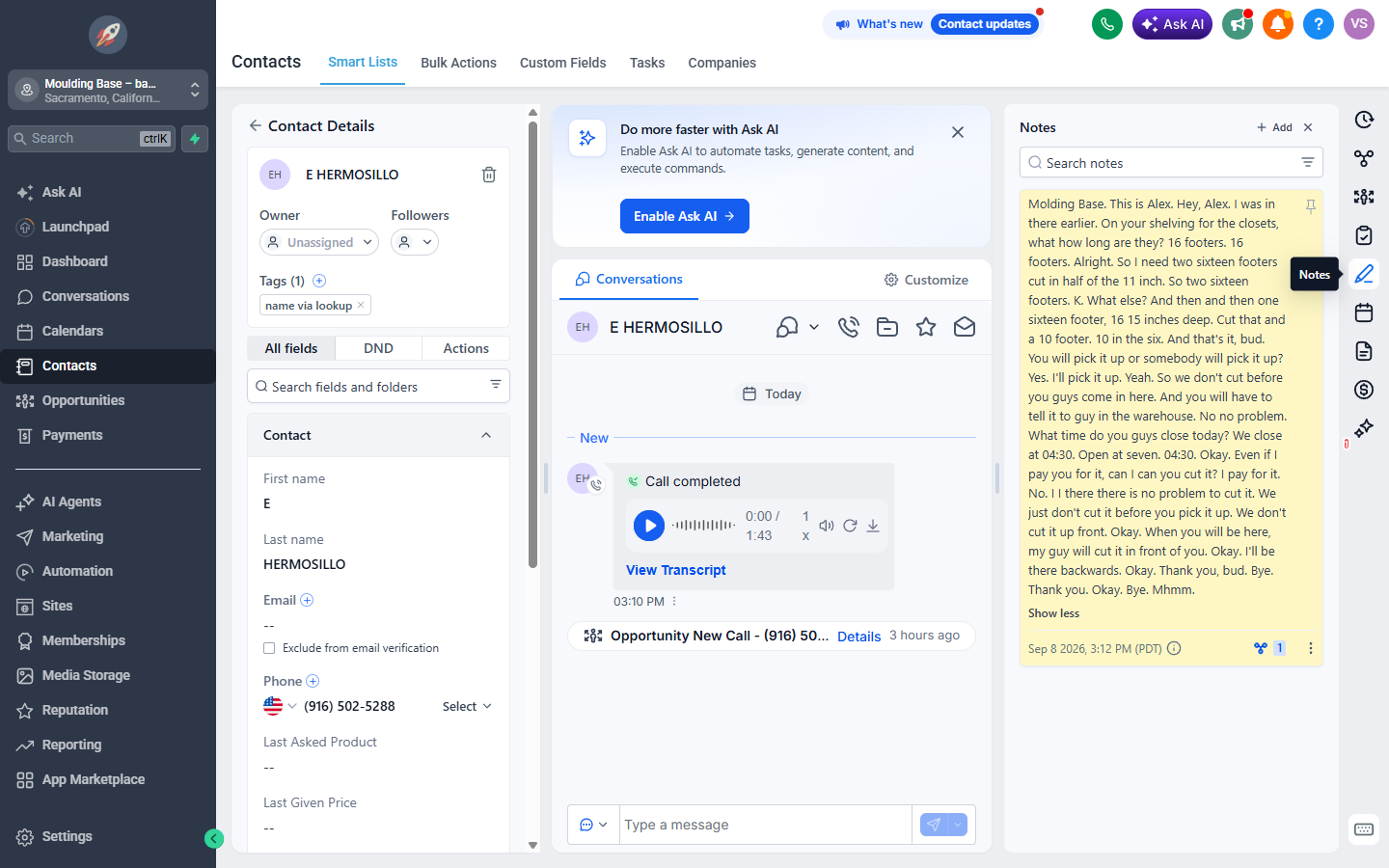
Notes also live on the contact, not just the deal. Same idea, same button, and that is where you look when someone calls about a job from four months ago.
07Tasks: what to do today
A task is a reminder with a due date and a name on it. Most of ours are created by the system, you only change the date when the customer gave you a different one:
- A website lead comes in: a task Send the quote today appears by itself.
- The card moves to
Quote Sent + Call Today: a task Call about the quote appears by itself, due 4:00 PM today. - The card moves to
Follow up 1 (After-Quote): a task for 8:00 AM tomorrow appears by itself. - In
NegotiationsandPending for a Weeknothing appears by itself: you set the task, for the day the customer named or the day you plan to try again.
An overdue task is not the end of the world, but it is visible: the task list shows who calls on time and who does not. Call, then tick it off, or move the date if the customer asked for a different day.
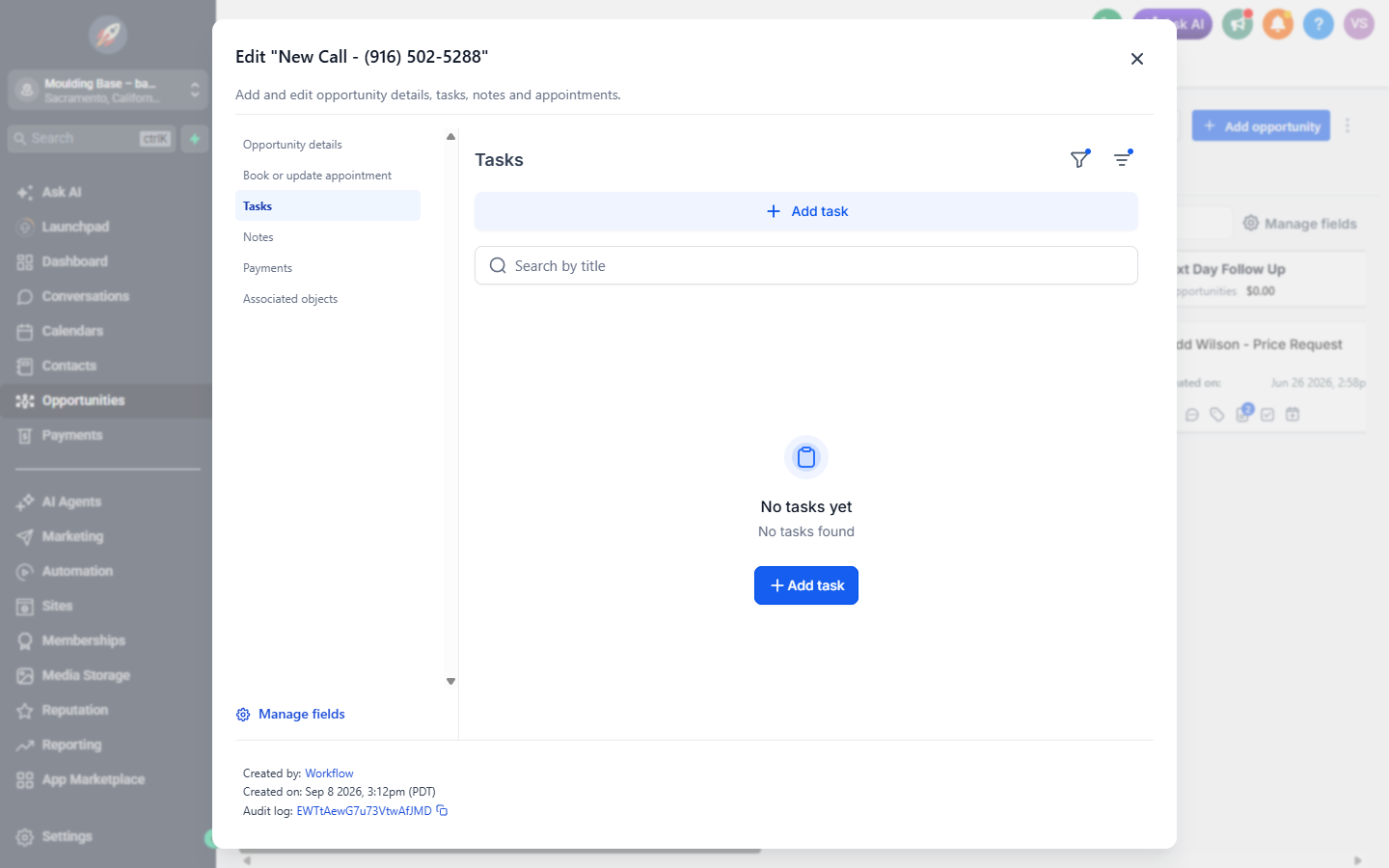
+ Add task creates one, and it belongs to this
deal only.Where all your tasks live
This is the screen most people never find, and it is the one that runs your day. Open
Contacts in the left menu, then the Tasks tab at the top.
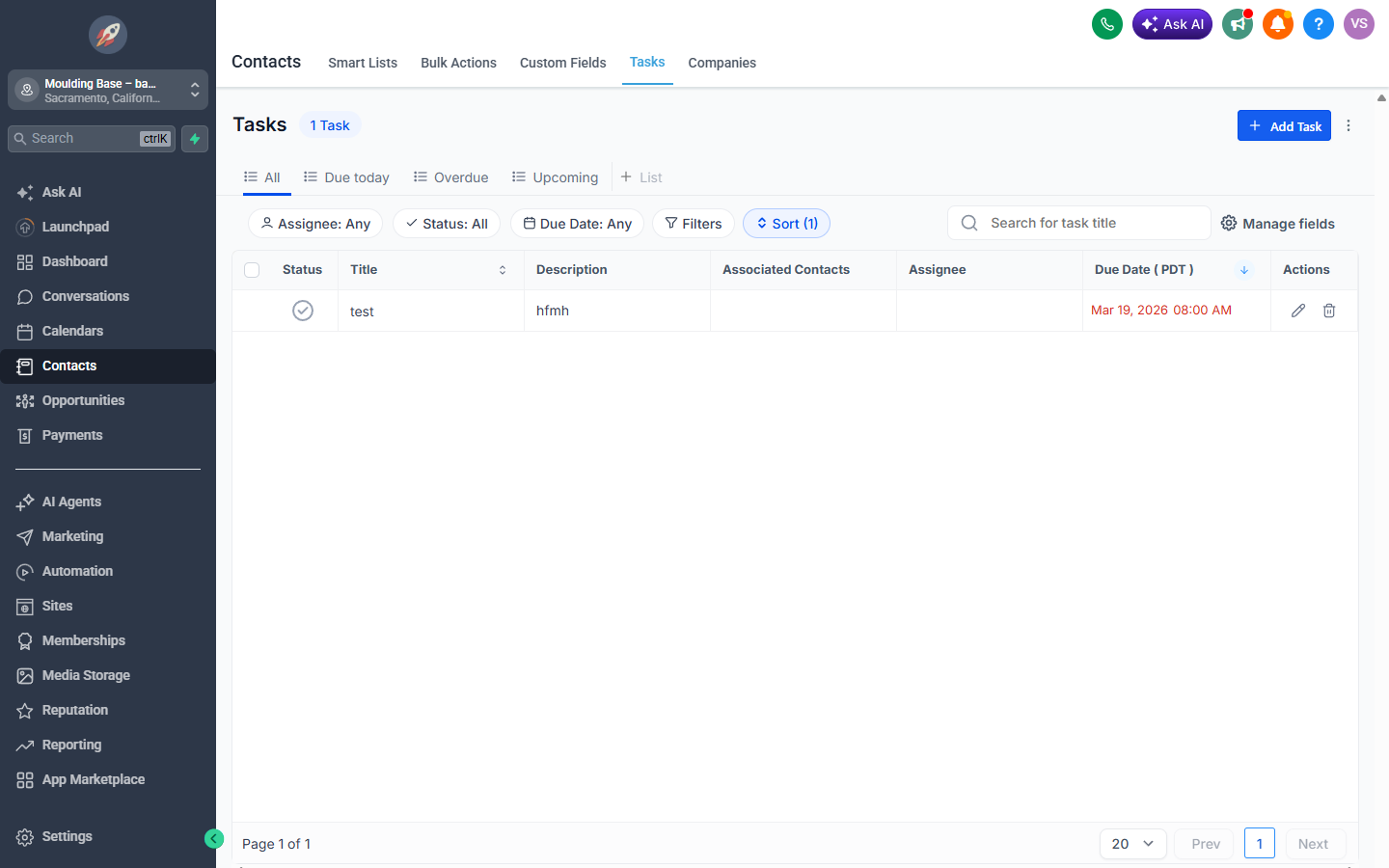
All, Due today,
Overdue and Upcoming, plus filters by assignee and status.Due todayis your work list for the shift.Overdueis the one that must be empty before you go home. Anything sitting there is a customer waiting on us.Assigneefilters down to your own tasks instead of the whole team.
08Contacts: the person and their history
Contacts in the left menu opens the list of every person we have ever spoken with.
Ours currently holds 789 of them.
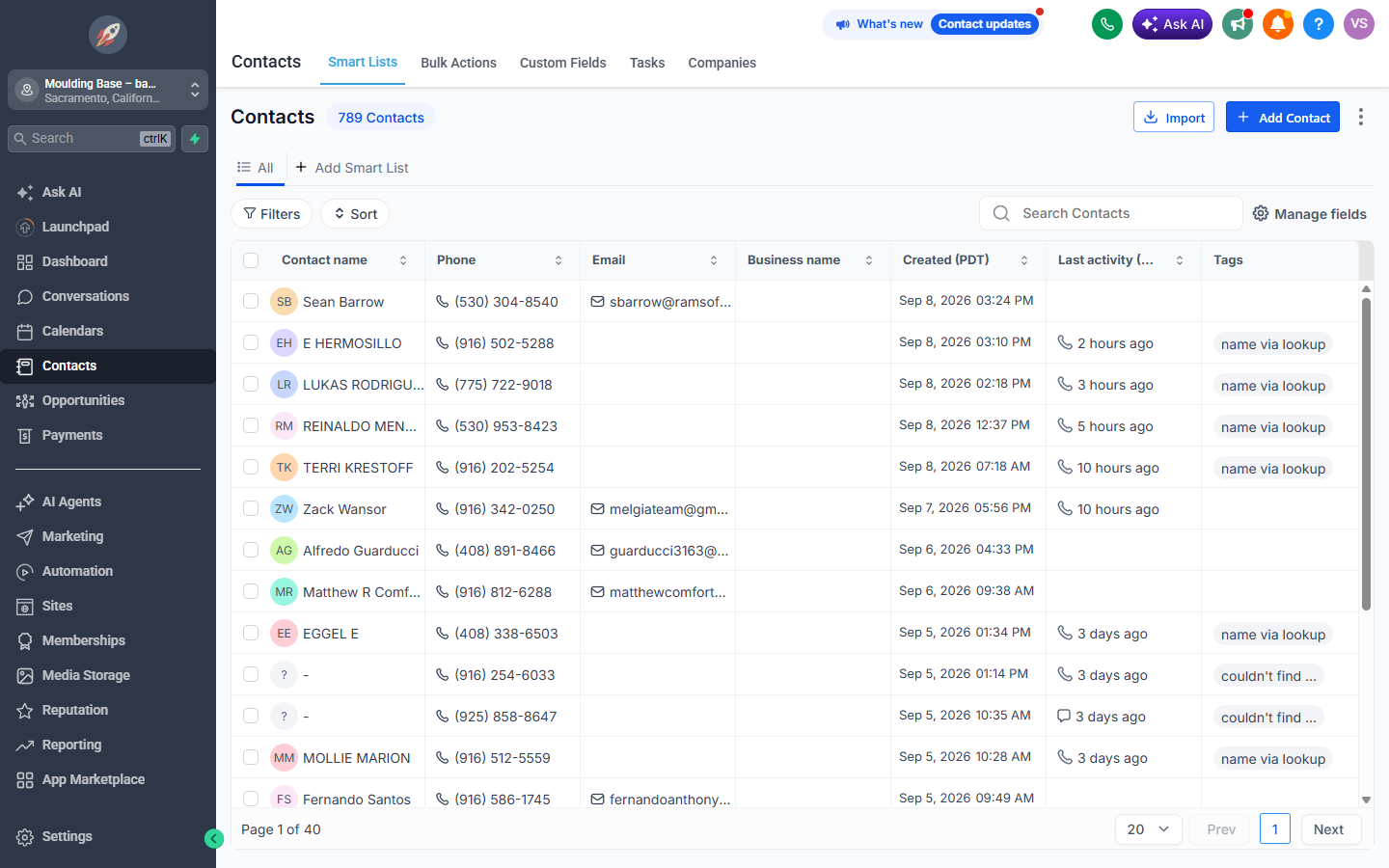
The contact card
Click a name and the card opens in three columns: details on the left, the conversation in the middle, activity on the right.
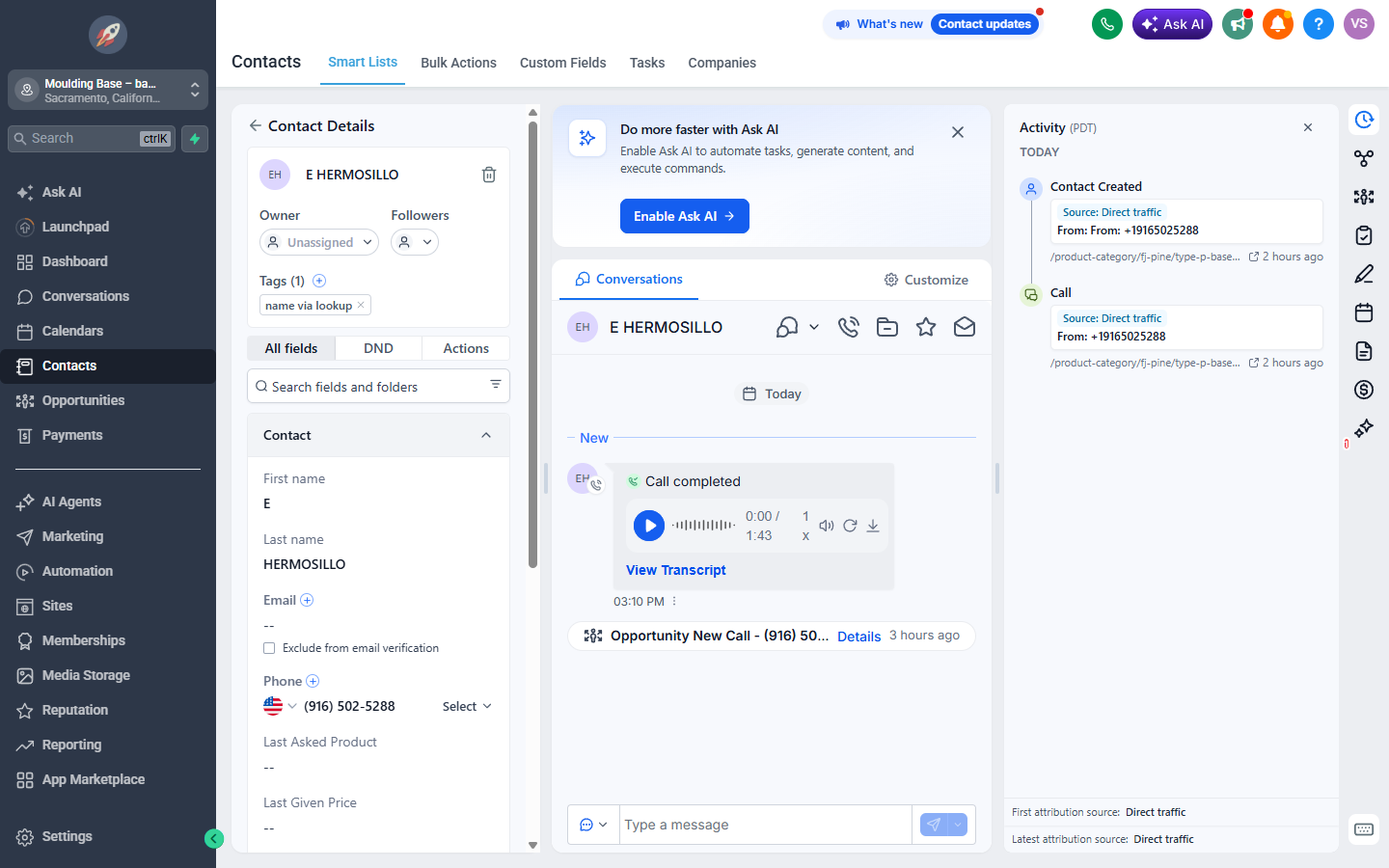
- Left column: name, phone, email, tags, owner, and our own fields
Last Asked Product,Last Given PriceandLast Given amount of lf. - Middle column: every call, text and email with this person, oldest at the top.
- Right column: where they came from.
Source: Direct trafficplus the page of the website they were looking at when they called. That tells you what they want before you say hello.
From the person to their deals and back
The icon strip on the right edge of the contact card has an Opportunities button. It lists every deal this person has with us, which stage each one sits in, and its status.
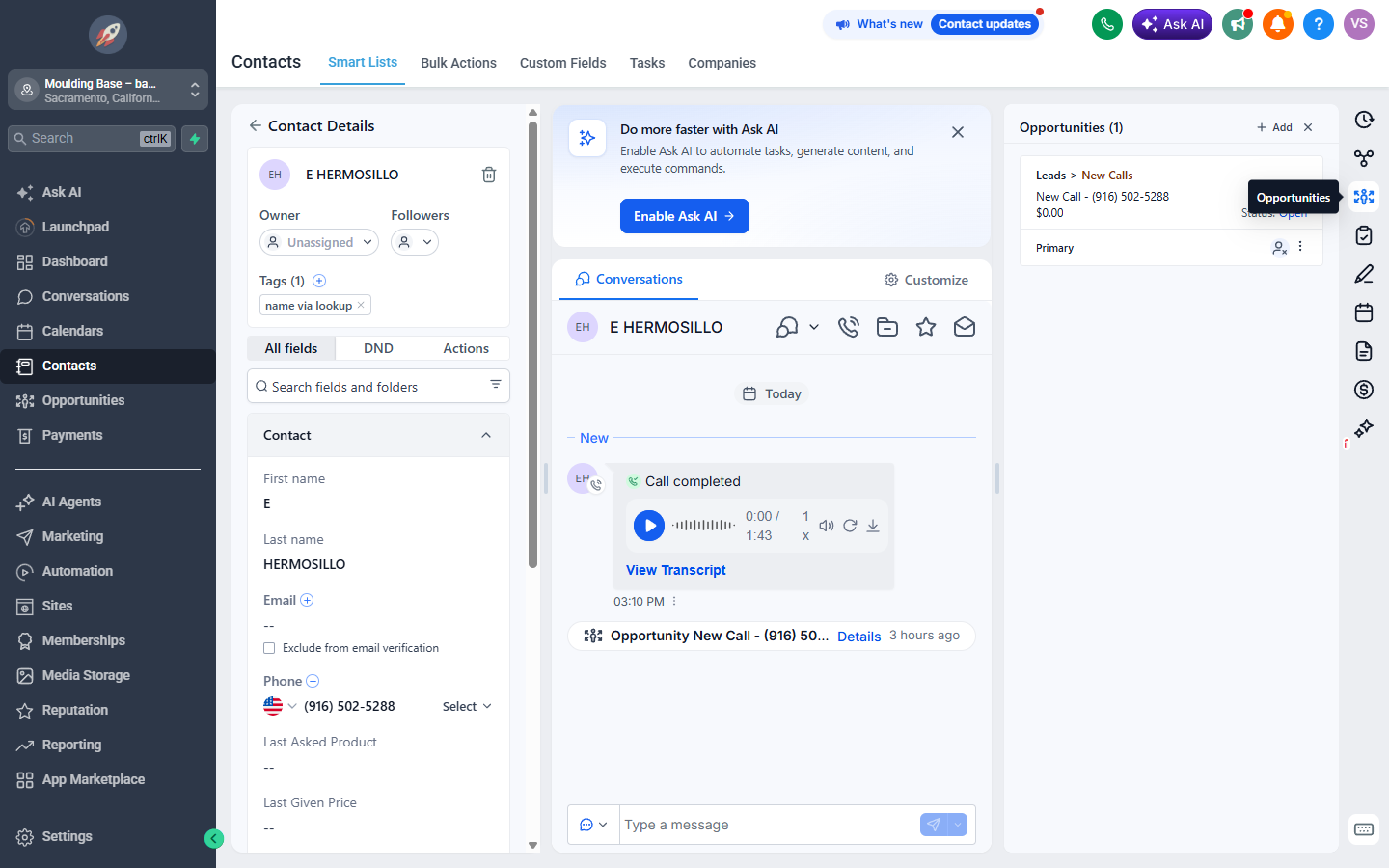
Leads > New Calls),
then the deal name, value and status.The trip in the other direction is the plate inside the conversation that says
Opportunity and the deal name, with a Details link on the right. That link
opens the deal card from section 5.
09Talking to customers from the CRM
Conversations in the left menu is the shared inbox: calls, texts and emails from
everyone, in one stream.
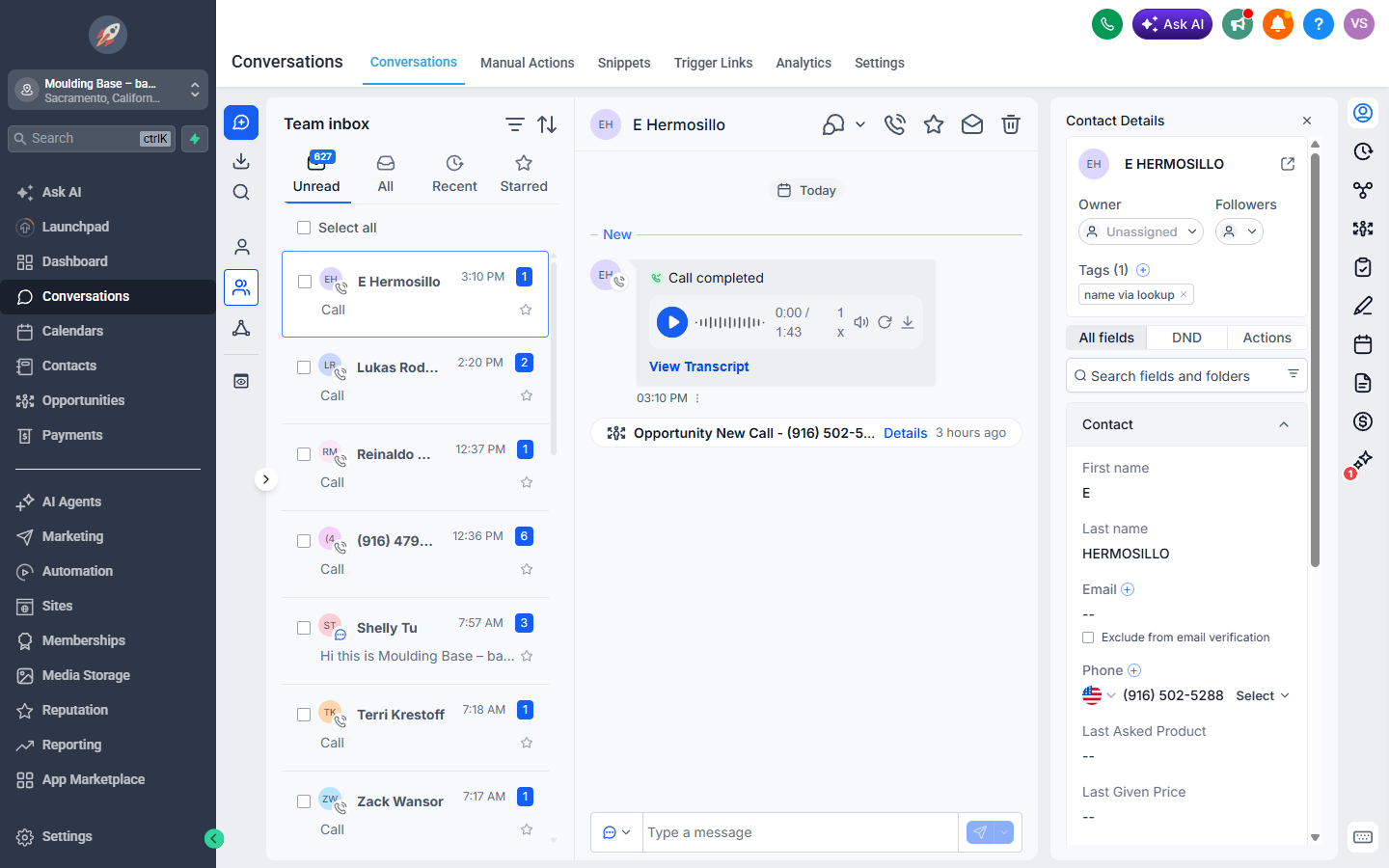
The inbox filters
Unread: nobody has opened these yet. This is the pile we are digging out of.All: everything, read or not.Recent: the newest activity first.Starred: threads you marked yourself, using the star icon at the top of a thread.
Call recordings and transcripts
A phone call shows up in the thread as a player with a play button and a length. Under it there
is a View Transcript link with the whole conversation in text. Faster than listening,
and searchable.
Sending a text or an email
Open the thread with the customer.
Look at the bottom of the middle column: there is a
box that says Type a message.
To the left of that box is a small icon that shows
the current channel, normally SMS. Click it to switch between SMS and Email.
Type and send. The message goes out from the store number or the store email, not from your personal phone.
Incoming texts
They land in the same inbox as calls, marked with a message icon instead of a phone. Customers do reply to our texts: in August five people wrote to us and got no answer back, because nobody was watching this screen. Now somebody is.
10Search and filters
Finding a person fast
The quickest way is the search box at the very top of the left menu, or the keyboard shortcut
Ctrl + K. It searches by name, phone number and email at once. A phone number works
with or without dashes.
Searching inside one screen
| Where you are | What to use | What it searches |
|---|---|---|
| The board | Search opportunities | Deal names, which include the customer name or phone |
| Contact list | Search Contacts | Name, phone, email |
| Inside a deal, Notes tab | Search notes | The text of the notes, transcripts included |
| Task list | Filters plus Assignee | Tasks by person, status and due date |
Filters worth setting once
- On the board:
Advanced filtersto show only your own deals, so the column counts mean something to you. - On the task list:
Due todayplus your own name inAssignee. - In the inbox:
Unread, and work it until it is empty.
11Your day in the CRM
| When | What you open | What done looks like |
|---|---|---|
| Start of the shift | The board, column Pending Our Answer; then Contacts →
Tasks → Overdue, then Due today |
Yesterday's leads have their quote, and you know who you owe a call before the first customer walks in |
| Through the day | The board, plus Conversations when something new lands |
Every card you touched has a filled note and a task with a date, and no card is left in the first column |
| New lead comes in | The card appears by itself, with a task and a started note | The quote went out from the card today, the card is in Quote Sent + Call
Today, and you called about it by 4:00 PM |
| End of the shift | Overdue one more time |
The list is empty, or the leftovers have a new date and a note explaining why |
12Quick answers
The customer called me back before I called them
Great. Handle the call, write the note, move the card to the right stage, and tick off the task that told you to call. Do not leave it open: a task with no purpose left is noise for everyone.
The form has no product in it
Nothing to price yet. Call first, ask what they need, then send the quote from the card and
move on to Quote Sent + Call Today as usual.
Two calls, no answer, but I think this one is worth it
A contractor, a big order, someone who clearly meant it: move the card to
Pending for a Week instead of Lost, write in the note why, and set your own tasks
for the calls. Reach them and move the card on. Seven days with no movement and the system closes
it as Lost by itself.
I cannot find a deal I know exists
Two usual reasons. Either a filter is on and hiding it (check Advanced filters on
the board), or the deal is already closed and dropped off the open view. Search the contact by phone
with Ctrl + K, open their card, and look at the Opportunities panel on the right: it
shows every deal they ever had, closed ones included.
Two cards for the same person
That is allowed and often correct. One contractor with three jobs is three separate deals. Two
cards for the same job is a duplicate: keep the one with the notes, and close the other as
Lost with the reason Not a customer.
The lead came in after hours
It sits in New Website Leads overnight and moves to Pending Our Answer
at closing like any other. First thing in the morning: quote, then the call.
A contractor is only asking for a price
If there is no project behind it, close the deal as Lost with the reason
Question about material. That is not a failure, it is how we learn how much of our
phone time goes to price checks.
I moved the card and forgot the note
Open the card, fill in Qty, Quoted and Next in the note
that is already there, check the task has the right date. Do it now, while you still remember the
call: tomorrow the details are gone.
I moved a card to the wrong stage
Drag it back. Nothing is lost, nothing is reported, no alarm goes off. The only thing that hurts is a card left in the wrong place quietly.
I need to see what was said on a call I did not take
Open the deal or the contact, go to Notes: the transcript is there in text. If you want to hear the tone, the recording is in the conversation thread with a play button.